AP Voucher
The AP Voucher (APV) is used to officially record and manage payables to your vendors. This ensures that all obligations are documented, tracked, and ready for payment processing.
💡 Note: Transactions can only be voided if they have no active references (or cancelled references) in Bills Payment.
How to Create a New Transaction
Start the Voucher
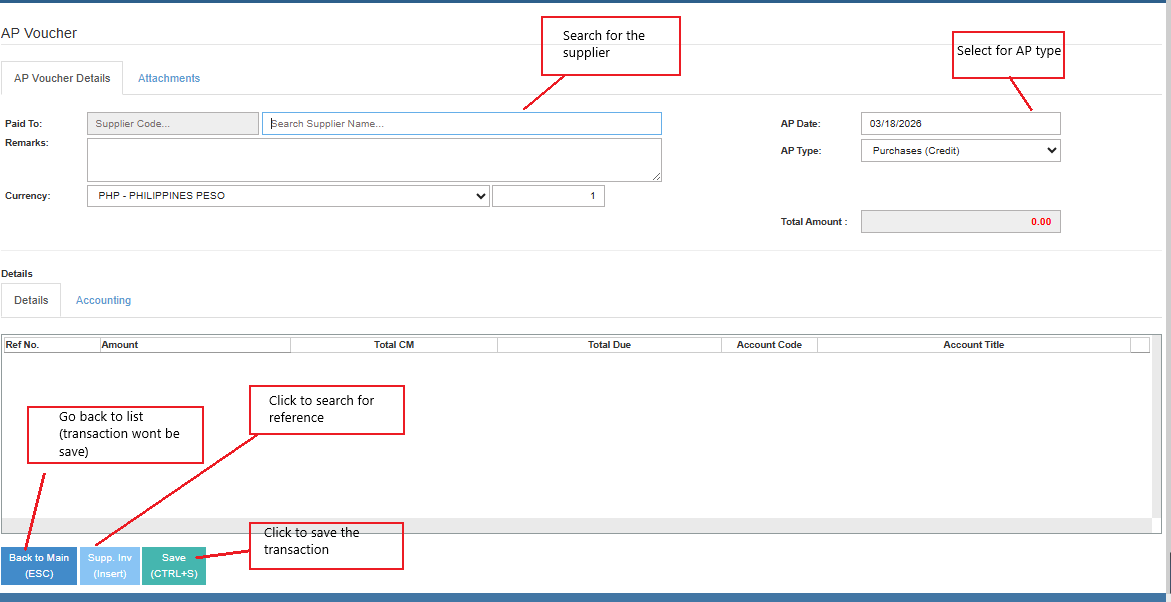
Click the Create New button to open a new form.Select Supplier
Search for and select the Supplier name first.Select AP Type
Choose the category that matches your transaction.
Purchases (Credit) – For goods/services already delivered.
Purchases (Advance) – For payments made before delivery.
EWT Remittance – To reference EWT transactions from APV, Bills Payment, or JV.
Petty Cash / Others – For manual accounting entries or other payables.Open Reference Window
Click the Insert button to search for pending transactions associated with the selected Supplier and AP Type.Select Transactions
Inside the pop-up window, check the boxes for the invoices or receipts you want to include, then click Insert to move them into the main voucher details.Save
Review the accounting entries and totals, then click the Save button.
How to Edit a Transaction
Select Transaction
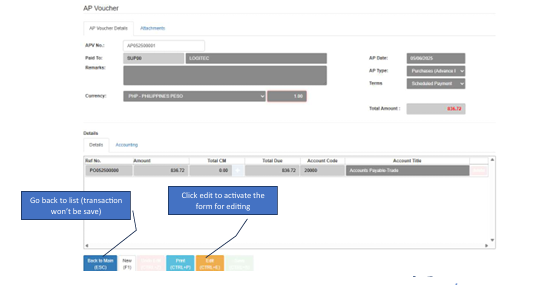
From the main dashboard, click the Transaction No. of the voucher you want to update.Activate Edit Mode
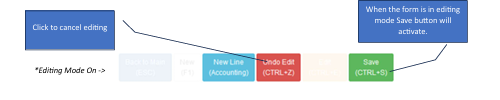
Click the Edit button to unlock the fields.Modify & Save
Update the AP Type or edit the line items. Once done, click Save to finalize your changes.