
Books of Account
The Books of Account serve as the official financial record of the company. These reports provide the data necessary for auditing, BIR compliance, and internal management review.
Core Sales & Purchases
- Sales Journal – Record of all sales made on credit.
- Purchase Journal – Record of inventory & service procurement.
- Sales Book – Official record for VAT and tax audits.
Cash Management
- Cash Receipts – Detailed log of all incoming collections.
- Cash Disbursement – Log of all outgoing payments/expenses.
- Cash Position – Summary of available funds across all accounts.
Accounting & Ledgers
- General Journal – Non-specialized entries (adjustments/depreciation).
- General Ledger – Complete history of every specific account.
- Accounts Payable – Tracking of debts owed to suppliers.
Financial Statements
- Trial Balance – Ensures debits equal credits.
- Balance Sheet – Snapshot of Assets, Liabilities, and Equity.
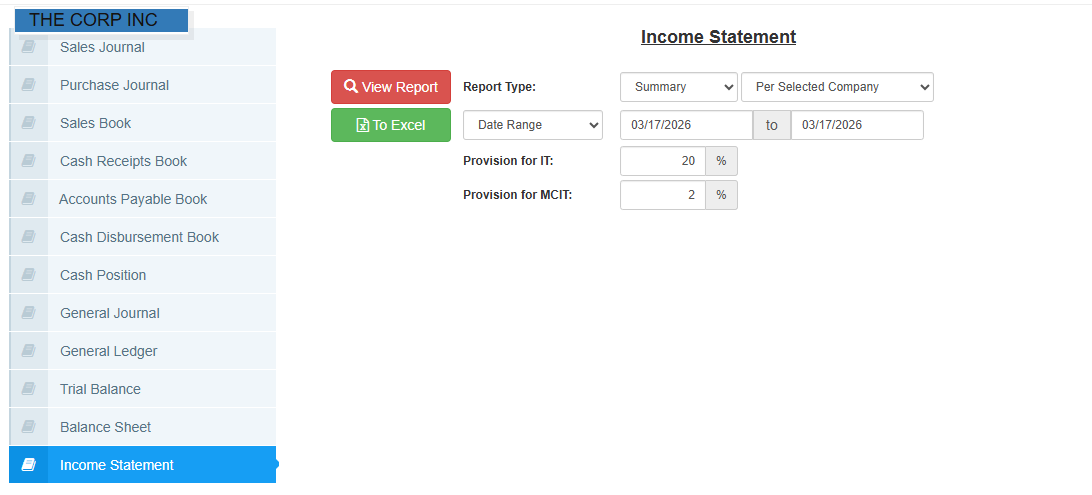
- Income Statement – Profit & Loss (Revenue vs. Expenses).
Typical Parameters
When generating these reports, you will typically encounter the following filters and options:
Date Range: Select the "From" and "To" dates for the period you wish to audit.
Report Type: Specific to the Sales Book (Ledger, Recap, Recap Per Customer), Trial Balance (Summary, Monthly), and Income Statement.
Ledger - Use this when you need to find a specific entry or check the exact details of a transaction.
Recap - Use this for a quick overview of your total tax liabilities and total revenue for the month.
Recap Per Customer - Use this to see which customers are your biggest contributors without looking at every single receipt.
Account Selection: Required for the General Ledger to track specific movement (e.g.,
10100: CASH ON HANDor20000: AP TRADE).Consolidation: Available for financial statements to view data Per Selected Company or Consolidated across all branches.
Tax Provisions: Specifically for the Income Statement to input IT (%) and MCIT (%) percentages.
Action Buttons
- View Report (Red Button): Click to render and display the report data on your screen.
- To Excel (Green Button): Click to download the report as an
.xlsxfile for data processing or filing.
💡 Audit Tip: For a quick health check of your accounts, use the Trial Balance with the Summary (As Of) report type to see your standing as of today's date.