Item Masterlist
The "Items" refer to the individual products, goods, or items that a business sells or manages as part of its inventory. Each unique product that a company offers for sale is categorized and tracked as an "item" within the system. Items play a crucial role in managing inventory, processing sales orders, tracking stock levels, and providing accurate financial information.
How to Create a New Item:
- Go to Master Data Files
- Click Items
- Click Master list
- Click Create New (F1)
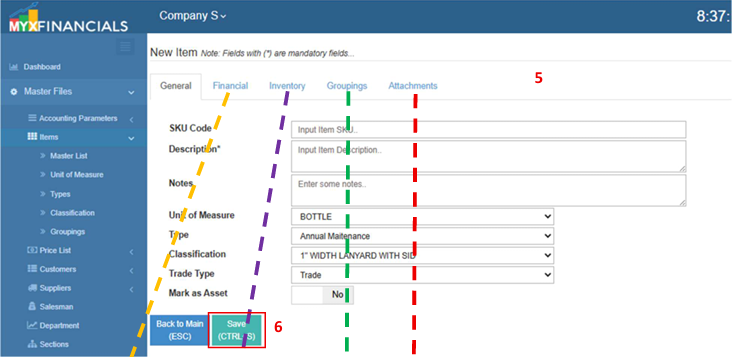
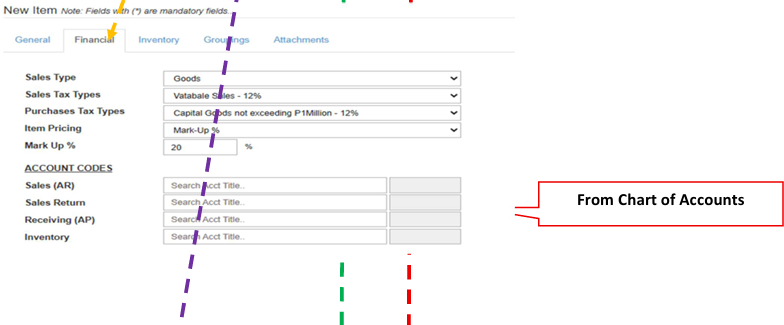
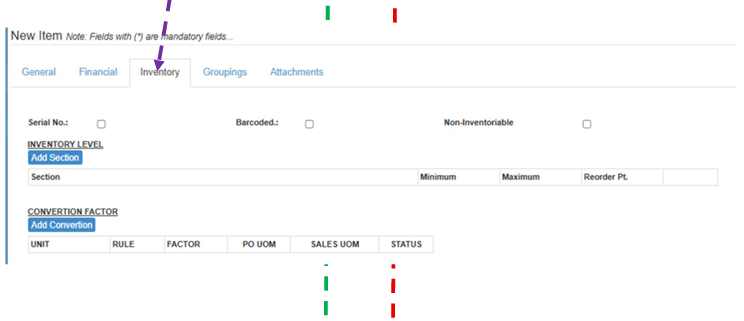
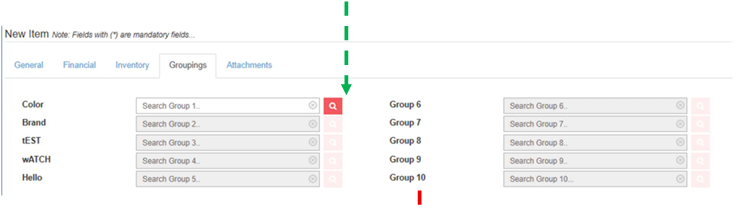
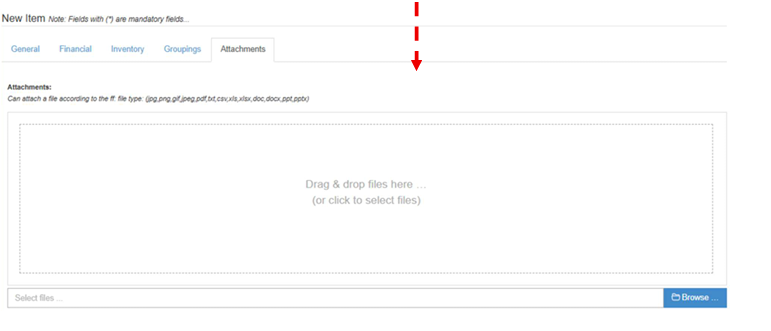
- Enter the details of the new item.
- Click Save (CTRL+S)
Visual Guide
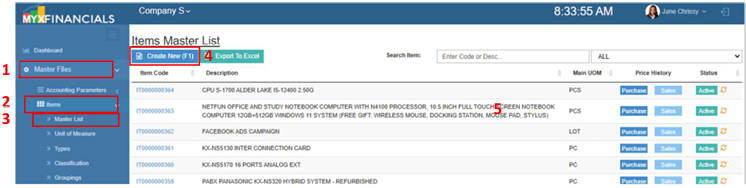 Figure 1: Item Masterlist.
💡 Take note: In the initial setup, the data for items will be uploaded from the filled-out template by the clients.
How to Update the Items:
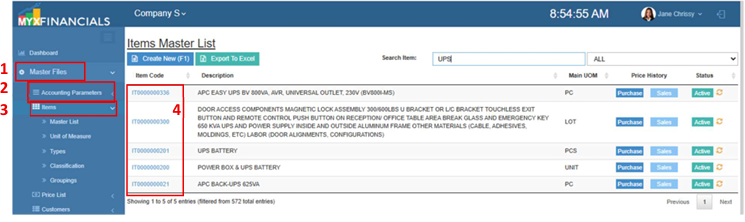
- Go to Master Data Files
- Click Items
- Click Master List
- Select item and click the blue font text or the Part No/Item Code.
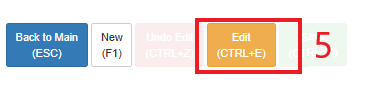
- Click Edit (CTRL+E)
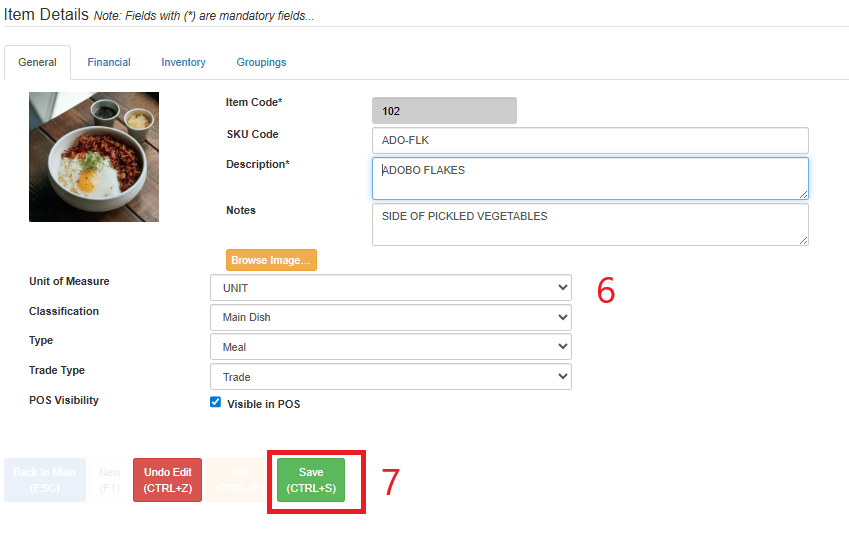
- Enter the updated details for the item.
- Click Save (CTRL+S)
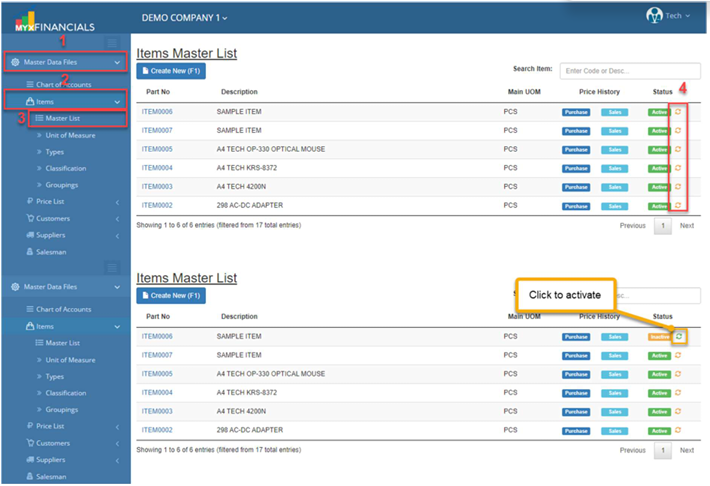
How to inactive the Items:
- Go to Master Data Files
- Click Items
Click Master List
Click the yellow cycle icon or Inactive
Click the green cycle icon or Active to activate the item.