Delivery Receipt
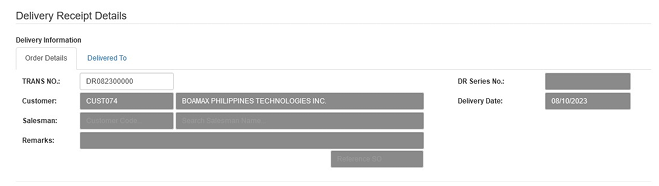
The Delivery Receipt (DR) is used to document the physical dispatch of goods to your customers. Recording a DR is a vital step before generating the final Sales Invoice.
💡 Note: Only transactions without reference or with cancelled reference to Sales Invoice will be available for unposting.
How to Create a New Transaction
Click the Create New button.
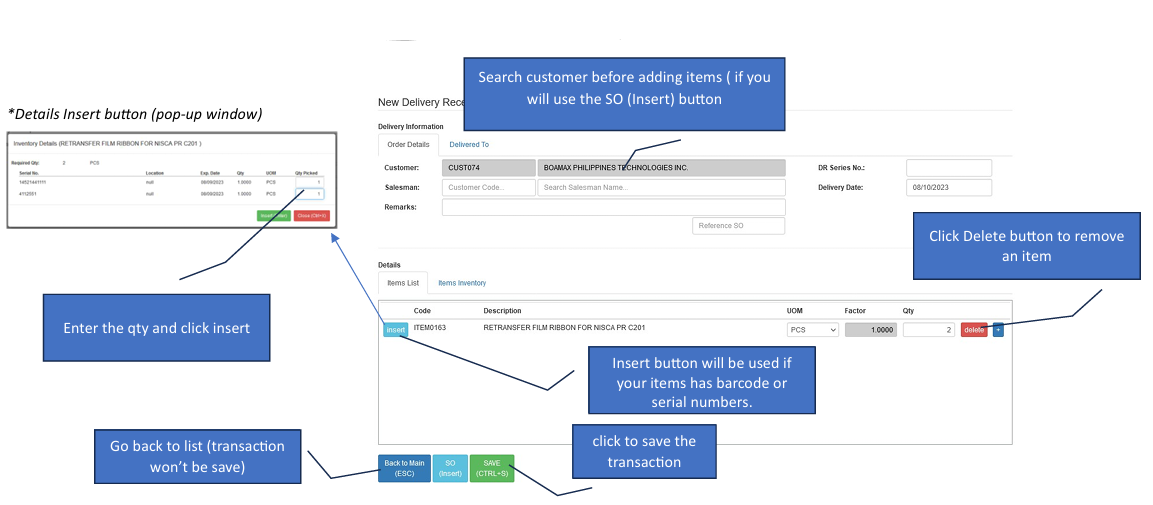
Add Details (Choose your Path) > Path A (Quick Entry): Simply type the SO Number in the reference field and press ENTER. The customer name and all items will automatically populate. Path B (Manual Selection): Search for the Customer first, then click the SO (Insert) button.
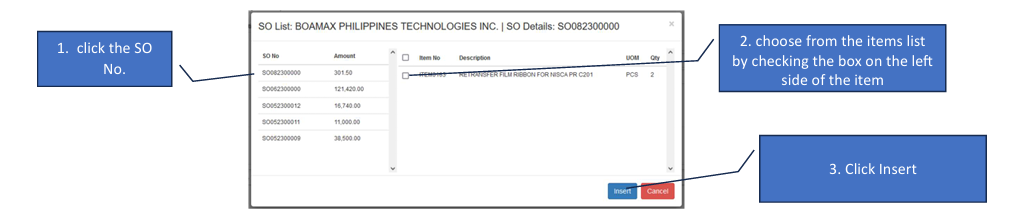
Select from Sales Order (If using Path B): In the pop-up window, click the specific SO No.. Check the boxes on the left for the items you are delivering. Click Insert to move them into the main form.
Barcode/Serial Entry (Optional) If your items have barcodes or serial numbers, click the Barcode/Serial Insert button in the details section. Enter the quantity and click Insert.
Save Review the quantities to ensure they match the physical items being loaded, then click Save.
How to Edit a Transaction
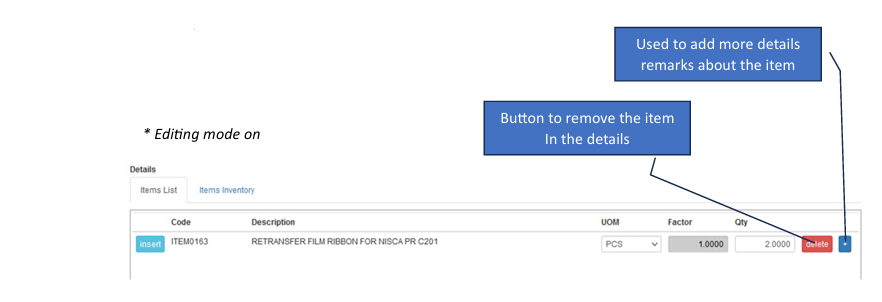
Enter Edit Mode Click the Edit button to unlock the transaction fields.
Add More Items While in edit mode, you can still click the SO Insert button to pull in more items from an existing Sales Order.
Add Item Remarks Use the Plus (+) button inside the details table to add specific notes or additional remarks about a specific item.
Finalize Once changes are complete, the Save button will activate. Click it to commit your updates.