
Inventory Reports
The Inventory module provides a centralized view of your stock levels and asset distribution across different departments and locations.
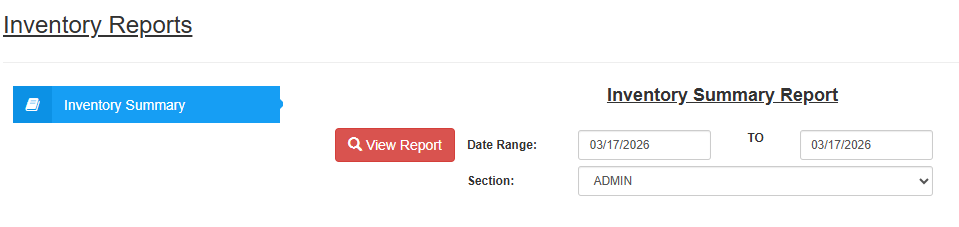
1. Inventory Summary Report
This report provides a comprehensive overview of your current stock on hand, allowing you to monitor availability and warehouse movements.
Inventory Summary > Displays current stock levels, quantities, and values across various sections.
2. Typical Parameters
To generate an accurate inventory view, configure the following filters:
Date Range: Select the "From" and "To" dates to view stock status for a specific period.
Section: Choose the specific department or location you wish to audit.
Examples: DEVELOPERS, TECH SUPPORT, TECHNICAL DEPARTMENT, STORE 1, CAFE, etc.
3. Action Buttons
View Report: Click this button to render the inventory data directly on your screen.
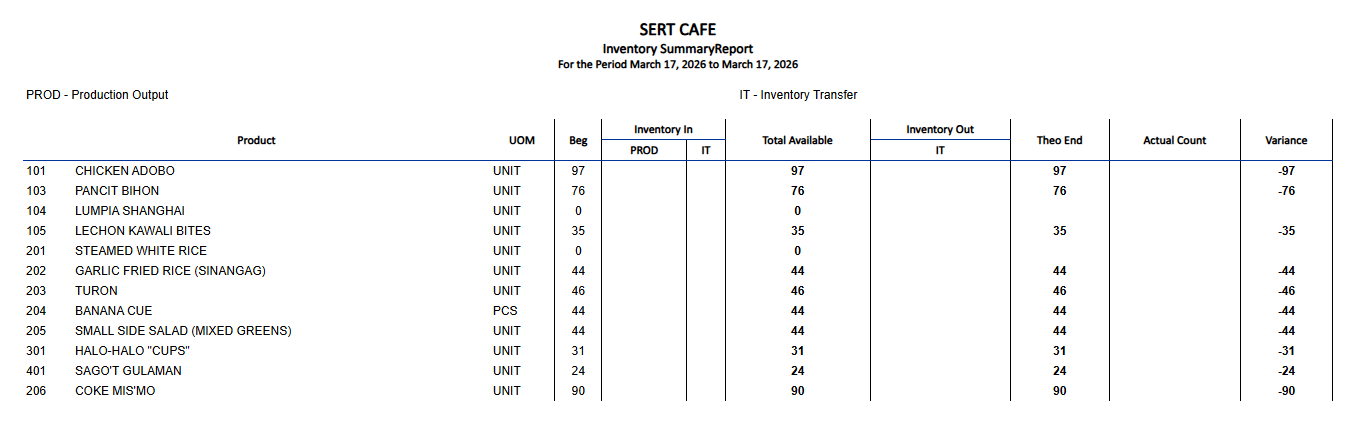
💡 Usage Tip: Selecting a specific section like "STORE 1" or "TECH SUPPORT" helps narrow down the list, making it easier to conduct physical spot checks for specific teams or branches.