System Users
System Users define authorized user accounts in the ERP system. Each user is assigned specific module access and action permissions, such as view, add, edit, post, cancel, and print.These settings control what functions a user can access and perform, ensuring proper system control, security, and accountability.
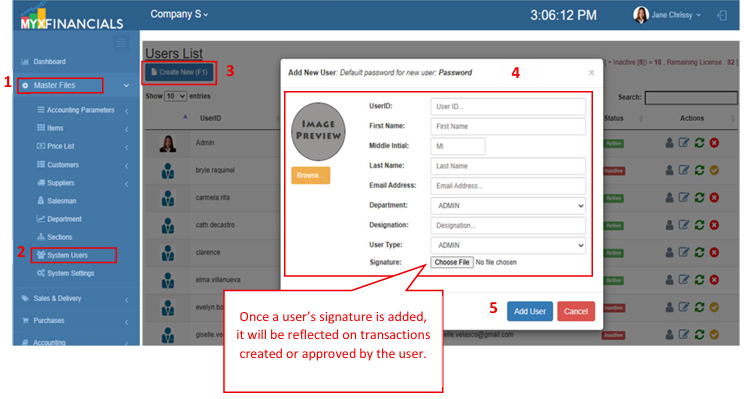
How to Create or Add New User:
- Go to Master Data Files
- Click System Users
- Click Create New (F1)
- Input the details for the new user.
- Click Add User
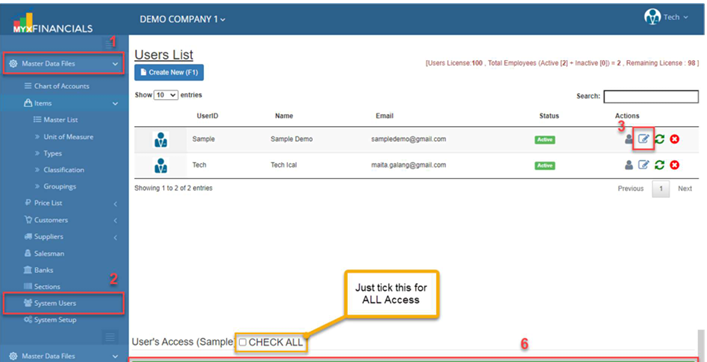
How to Set User's Access:
- Go to Master Data Files.
- Click System Users
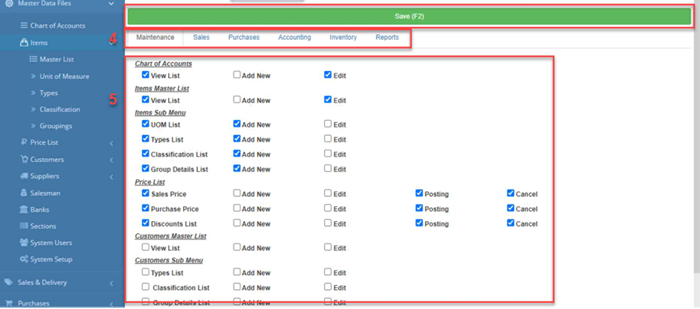
- Select a user and click the pencil icon or Edit user's access.
- Select the categories for which the user has access.
- Once you've chosen the category, mark the checkbox corresponding to the user's access.
- If user has an all access, just tick the CHECK ALL
- Click Save (F2)
How to Reset User Password:
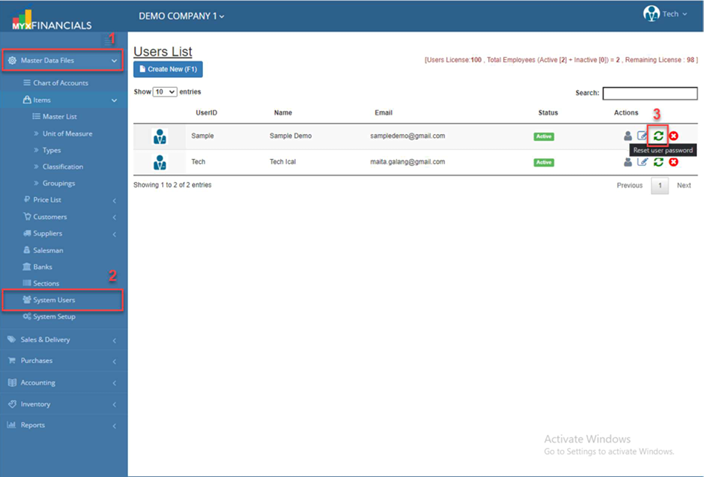
- Go to Master Data Files.
- Click System Users
- Click cycle icon or Reset user password.
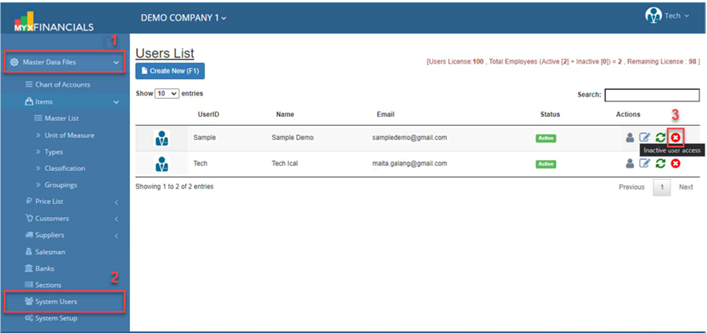
How to Inactive User Access:
- Go to Master Data Files.
- Click System Users
- Click x icon Inactive user access.
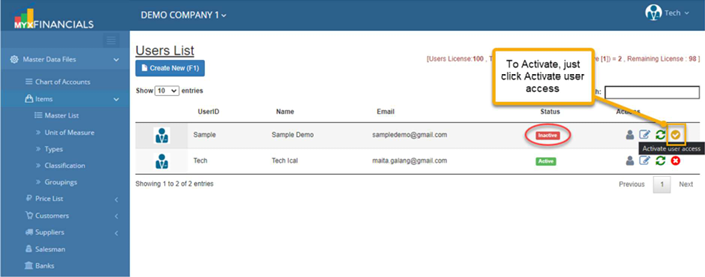
o To activate the inactive user, just click the check icon or Activate user access.