Sales Invoice
The Sales Invoice module allows you to bill customers for goods delivered or services rendered. This updates your accounts receivable and links directly to previous delivery or billing records.
💡 Note: Transactions can only be unposted if they have no active references (or cancelled references) in Adjustments or Receive Payment.
How to Create a New Transaction
Start the Invoice: Click the Create New button to open a new form.
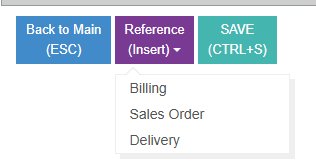
Choose your Source Reference: Depending on what you are invoicing, select the appropriate reference type. For Services > Choose Billing or Sales Order. For Goods > Choose Delivery.
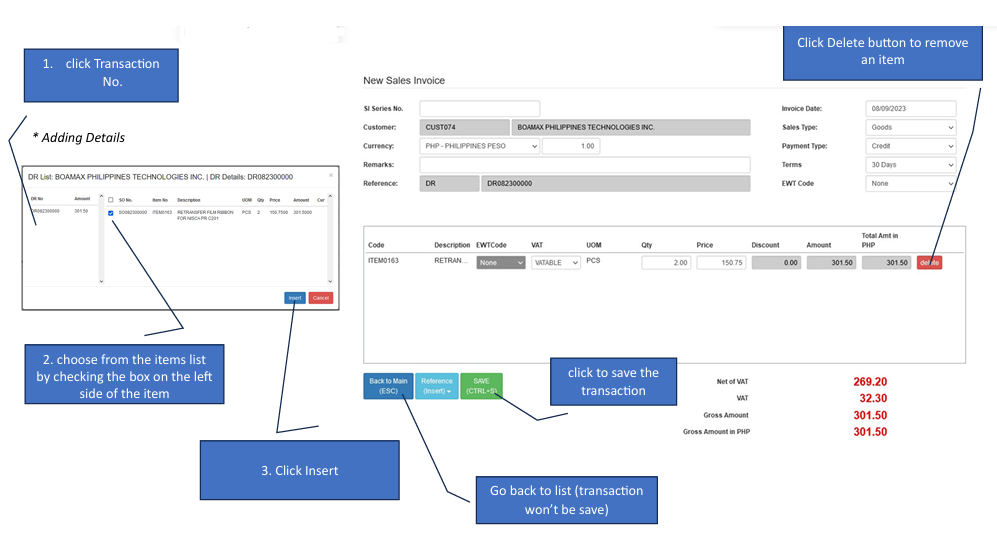
Select the Transaction: Click on the specific Transaction No. from the list to view available items.
Pick Items: Check the boxes on the left side of the items you wish to include in this invoice, then click Insert.
Finalize & Save: Review the totals and click the Save button.
How to Edit a Transaction
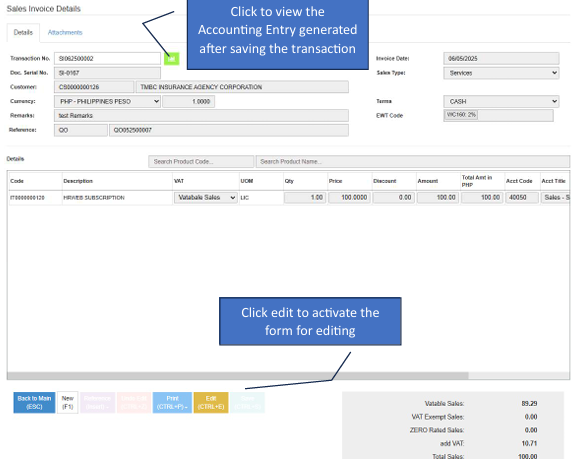
Enter Edit Mode: Click the Edit button to unlock the transaction fields.
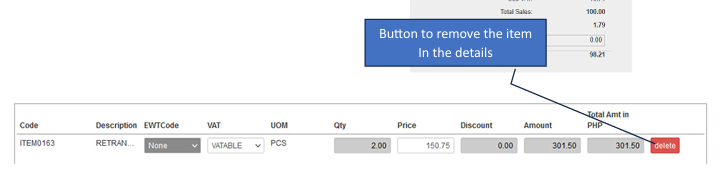
Modify Details: Remove Items > Click the Remove/Delete button next to a line item to take it off the invoice. Update Fields > The Save button will activate only while you are in editing mode.
Review Accounting After saving, you can click the Accounting Entry button to view the journal entries generated for this invoice.